ENJOY: Apps & OS
Showing posts with label Apps & OS. Show all posts

Tuesday, August 11, 2020

Chrome 86: Uninstall PWA Can Be Through Settings & Control Panel

Currently, the development of PWA is very fast in the last few years, apart from that PWA has received the Run in Startup feature, reportedly PWA will also get a Task Shortcut Menu which of course will speed up accessing certain pages on the installed website.

In addition, recently Google has also added a new ability to delete PWAs directly through traditional methods, namely through the options in the Control Panel, or via the Settings app in Windows 10, including of course by right-clicking on the Start Menu.

It should be noted, PWA is a web application that uses modern web technology and can be installed and launched like a native application on the operating system, and related to the new features that have been mentioned, actually for now we can indeed access the PWA from Settings or Control Panel, but when we are going to do Uninstall, we will be forced and directed to the browser first.

Uninstall PWA Starts Directly In Chrome 86

Starting from Chrome 86 which is currently still Canary status, users will immediately get the Uninstall Prompt after clicking on the Uninstall / Remove button either in the Start Menu, Control Panel or Settings.

So of course this feature will make it easier for users and make PWAs more feasible like the Native application in the Operating System, and of course this is an interesting feature that should have been implemented long ago.

Saturday, August 8, 2020

Intel Update Bluetooth & WiFi Driver To Fix BSOD in Windows 10

Recently Intel fixed Bluetooth and WiFi Driver for those Intel Wireless Device users in Windows 10 May 2020 Update or earlier.

This update is said to fix most of the problems related to Blue Screen Of Dead (BSOD) that users may be experiencing, besides that this update also comes with performance improvements and security enhancements.

The following adapters support Driver Update:

  • Driver Version 21.110.1.1 for Adapter AX201, AX200, 9560, 9260, 9462, 9461
  • Driver Version 20.70.18.2 for Adapter 8265 and 8260.
  • Driver Version 19.51.30.1 for Adapter 7265, 3165 and 3168.

And for those who are curious, here is the complete changelog of this driver update:

  • Fixes an issue where the data transfer performance is reduced when the network connections shifts from Wi-Fi Direct to 2.4 GHz AP.
  • Fixes BSOD caused by the Intel wireless driver.
  • Fixes BSOD when you resume your device from Sleep mode and Modern Standby feature is enabled.
  • BSOD fixes reported with Event ID 5010 in Event Viewer.
  • Fixes performance issues when you resume your laptop from sleep mode and Modern Standby is enabled.
  • Fixes disconnection issues when your system is sitting idle or you're streaming online videos at 2.4 GHz.
  • Includes functional and security improvements.

Now for those of you Intel users with the adapter mentioned above, you can download it via the Intel Driver and Support Assistant (iDSA) Tool which you can download on the following page, then please follow the steps instructed.

Sticky Notes Get New Icons

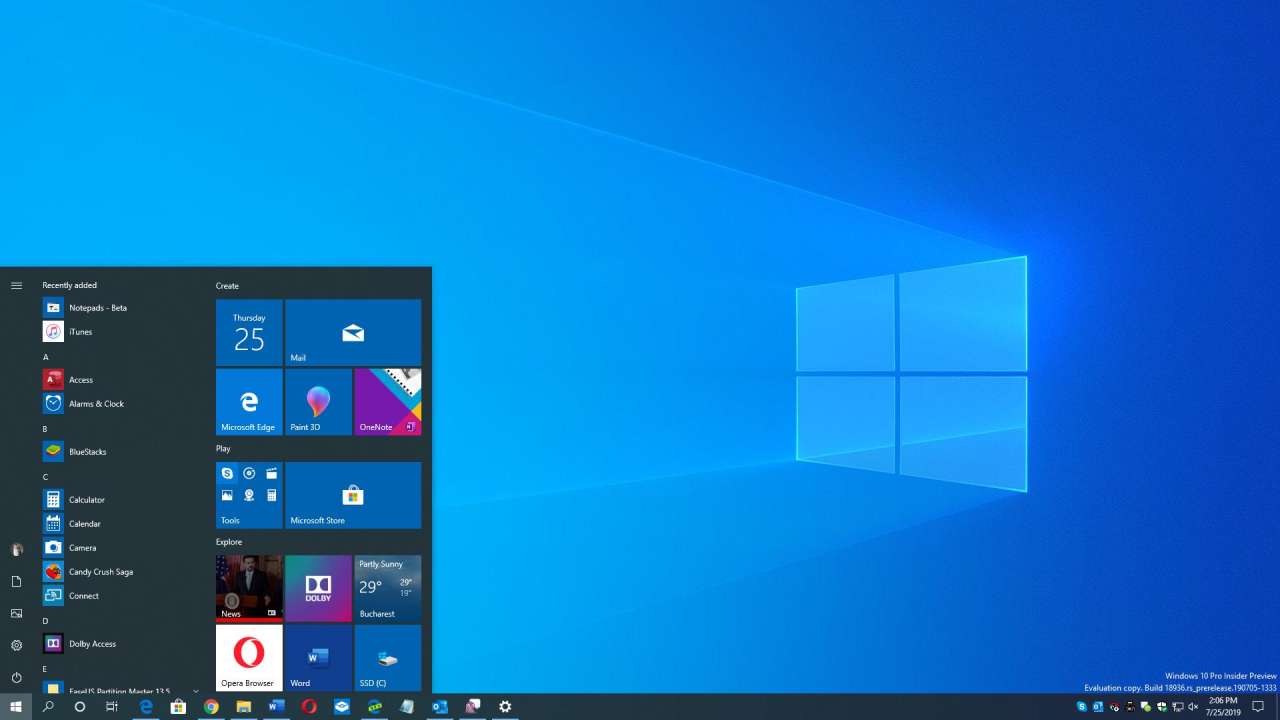
After a long time, finally the Sticky Notes application gets a new Icon like other default applications in Windows 10, the display that comes in accordance with what was previously rumored, which comes with a larger size and appearance, with slightly rounded corners.

But unfortunately, apart from changing the icon, several new features such as Extended Mode and Tab Management are not currently present in Sticky Notes.

But even so, of course this icon change will make the Sticky Notes look even cooler, especially if the new Windows 10 Start Menu is already in use.

For those of you who haven't got the new Sticky Notes icon, you can update this application via the Microsoft Store > Download and Updates and click Check For Update there.

Friday, August 16, 2019

GOOGLE RELEASES FEATURE TO PREVENT PLAGIARISM IN WRITING


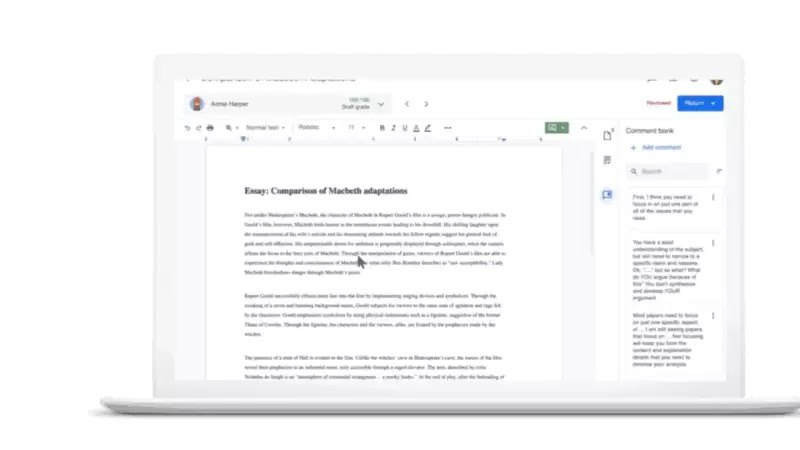
Google for Education released a new feature called Originality Reports that functions like an application or a plagiarism detection program.

This feature will be part of other Google for Education products, namely Classroom and Assignments, which are also released together.

Product Manager at Google for Education, Brian Hendricks, said that he and his team received a report from the teachers who were members of this initiative.

They usually check student papers on Google Search by copy-paste paragraphs to find out if the paper is authentic. This certainly takes a lot of time and is not effective. Therefore, Google released Originality Reports.

When assigning tasks in the Classroom and Assignments, Brian said, "Teachers will have the option to enable Originality Reports."

If this feature is active, students will be able to execute Originality Reports for their works up to three times before sending them to the instructor.

"This gives students the opportunity to proactively improve their work, and also saves time for teachers," Brian said.[next]

School Repository

Brian said, going forward Google would allow schools to "have their own repositories of collected works" and therefore, "teachers can receive originality reports that include student work in the same school."

During the limited initial testing period, teachers can use this feature as often as they want at no cost.

To use this feature with Classrooms, teachers need to register to be part of the testing program. To try Assignments, which includes an automatic originality report, register through the Google for Education website.

Thursday, July 25, 2019

BECOMING MORE ACQUAINTED WITH THE PRIVACY FEATURES IN MICROSOFT EDGE


The transition to Chromium allows Microsoft to expand Edge beyond the Windows world, so macOS builds are also in the works. Linux could get a version of its own as well, but the work in this regard is yet to start.

Meanwhile, Microsoft is trying to focus on the basics, and since privacy has become a priority for the company moving forward, the browser receives more tuning in this regard as well.

The latest Microsoft Edge browser, for example, comes with new options to clear browser data automatically on exit, so the privacy section of the app itself evolved substantially lately as well.

Today, we’re going to discuss this menu in detail, albeit it’s worth keeping in mind that further options could be added in the future when Microsoft completes the development of new privacy settings.

First and foremost, let’s see when you can find all these options. The path is the following:

Microsoft Edge > Menu > Settings > Privacy and services

The top section concerns the browsing data that Microsoft Edge collects and stores locally when browsing the web. This includes information like history, passwords, cookies, and others, and Microsoft Edge allows you to either clear the browser data manually or simply decide what to delete when you close the app.

This latter option is new to Microsoft Edge and was implemented in the latest Dev build.

The next section here comes with a straightforward name: privacy. This time, the options here do not concern data that the browser saves, but the way the application interacts with the pages you load.

For example, Edge lets you enable and disable Do Not Track, a feature that instructs websites not to track you when going online. Also, you can allow sites to check if payment info is saved, but also to manage HTTP/SSL certificates and settings within the app.

If you want to contribute to the development of the browser, this is the place when you can enable such behavior too. Microsoft Edge comes with options to improve Microsoft products by sending data about how you use the browser, but also to send info about the sites you visit in the browser. Both options require an app restart.

The last section is called Services and it includes features which Microsoft says could help improve your browsing experience. For example, you can “use a web service to help resolve navigation errors,” which means that the issues you come across online are submitted to a server where they are diagnosed and you receive a solution to deal with them. By default, this feature is enabled.

Then, you can enable and disable Microsoft Defender SmartScreen, a feature that has caused quite a controversy lately. This tool works by keeping an eye on the links you enter in the browser, sending them to Microsoft to be analyzed against a list of potentially dangerous domains. A security researcher discovered that your account’s security identifier is also sent to the company, potentially exposing other details and allowing Microsoft to tell who visits what.

The last option in the privacy menu of Microsoft Edge concerns the address bar, as you can enable and disable search suggestions provided by the search engine. This menu also lets you manage search engine and change the one that you are using in the address bar.

Remember that these settings right here are part of Microsoft Edge Dev at the moment, but given the browser is still a work in progress, they could be slightly different when the final version of the browser launches.

HOW TO ROLL BACK FROM THE ACCIDENTALLY-RELEASED WINDOWS 10 BUILD 18947


In fact, this build was only supposed to be installed on internal devices for further validation, but due to what Microsoft calls “a configuration change,” it ended up on Windows Update for everyone enrolled in the Windows Insider program.

The build was accidentally released to both 32-bit, but as per our original report (linked above), some 64-bit devices received it as well.

Microsoft explains what happened in the following official statement:

“We actively test and validate each of our preview builds internally before sharing them externally, however a configuration change allowed this build to release to multiple rings simultaneously, including external rings. We have made the necessary remediation in our Flighting service and have implemented additional changes to help prevent from this happening in the future.

We apologize for any troubles this may have caused for affected Insiders and appreciate your assistance in bringing this to our attention so we could make the necessary changes as quickly as possible.”


Determine the build you are running


The first step comes down to determining whether you’re running this build or not. Although you should have noticed a new build installing, if you’re not sure what version you’re on, click the Start menu and type winver.

If you are running Windows 10 build 18947 (which is the one accidentally released by Microsoft), the OS build number should be Version 1903 (OS Build 18947). If you’re running a different version, you should either check if the update is pending in Windows Update, and if it does, skip to the next step. If it doesn’t, you’re good to go.


If build 18947 is waiting for installation


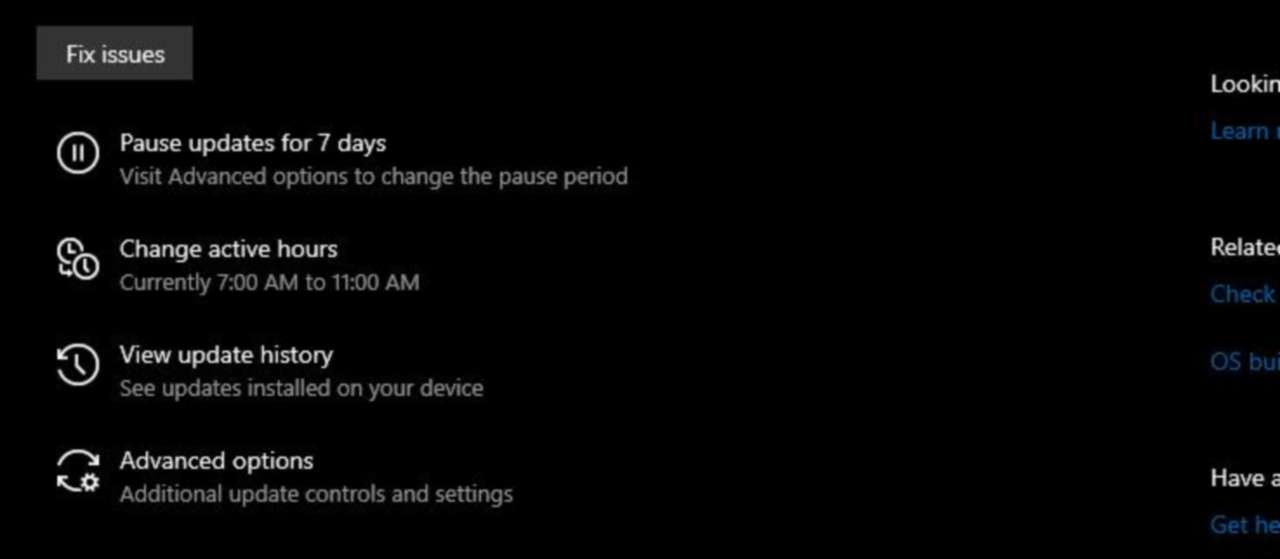
While there are several ways to remove an update that’s pending install, but for this particular case, Microsoft recommends users to just pause updates for 7 days.

To do this, head over to the following path on your PC:

Windows 10 > Settings > Update & Security > Windows Update > Pause updates for 7 days

Reboot your device and then follow the same path and unpause updates. Your system should then check for updates normally, and the accidentally-released build should no longer be offered.


If build 18947 is already installed


If you’ve already installed this build, you just need to roll back to the previous version that was installed on your device. And doing this is easy, as Windows 10 comes with the necessary options to let you do this with just a few clicks.

The path to the option is the following:

Windows 10 > Settings > Update & Security > Recovery > Go back to the previous version of Windows 10

Once you begin the process, you need to follow the on-screen instructions to complete the rollback. Your system will reboot and then the previous version of Windows 10 will be restored.


If build 18947 is not installed and not pending install"


In this case, there’s nothing you should do because your computer wasn’t offered this build. This means that you will get the new updates as part of the Windows Insider ring that you’re enrolled in when they become available with no action required on your side.

Right now, the following configuration is being used for Windows Insider program rings:
Fast ring – Windows 10 20H1
Slow ring – Windows 10 19H2
Release Preview ring – Windows 10 version 1903 (May 2019 Update)

Wednesday, July 24, 2019

NEW MICROSOFT EDGE DEV BUILD DISCHARGED WITH SECURITY UPGRADES


Microsoft Edge Dev version 77.0.223.0 includes several changes that have previously made their way to the Canary sibling, including a new privacy feature to clear browsing data on exit.

In other words, you can now configure Microsoft Edge to automatically delete certain browsing data when you close the browser, so you no longer have to do the whole thing manually.

Microsoft says that Edge Dev now uses the Windows system settings and colors for high contrast, while the SmartScreen feature comes with a couple of new options to protect you when browsing the web.

SmartScreen tweaks


“When Microsoft Defender SmartScreen identifies a malicious site, if you open the site information flyout from the left side of the address box you will see new options to ‘Report as safe’ and ‘Show unsafe content,’” the company says in the official changelog (also embedded in the box after the jump).

SmartScreen protection is now available by default in the macOS build of Microsoft Edge as well, and the company says it has disabled the dedicated extension that was previously offered to Apple users. Also, SmartScreen options to disable the feature in guest mode are no longer available.

There are also several other usability improvements, such as an increased width for pinned tabs. Microsoft says this change is based on user feedback, so many users are likely going to find it easier to see and click pinned tabs after the update.

In addition to the enter key to choose items in menu, Microsoft Edge Dev now supports the spacebar as well.

You can find the full release notes in the box after the jump and click the links here to download the latest versions of Microsoft Edge for all supported platforms.

Microsoft Edge Dev Version 77.0.223.0

  • Fixed an issue which was preventing upstream playback for some users. Hulu would not play on a supported monitor if there was a second unsupported monitor attached.
  • The user interface now uses Windows system settings and colors for high contrast.
  • When importing your data browsers in profile settings, new options for importing cookies are available.
  • Website permissions like access to location and devices are now the current version of
  • Microsoft Edge when you install an insider channel.
  • When the Microsoft Defender Smart Screen identifies a malicious site, you can see new options to "Report as safe" and "Show unsafe content".
  • SmartScreen protection is now built-in on macOS, and the SmartScreen extension has been disabled.
  • The option is SmartScreen is no longer available in guest mode.
  • In response to feedback, we increase the width of pinned tabs to make them easier to see and click.
  • The ability to export passwords to a CSV file has been restored.
  • Updated the error messages seen when the PDF reader is disabled in site permissions. Different errors now shown for local files versus web files, and messages offer a quick link to the settings.
  • In the download page, the canceled downloads of now shown with gray color and striking through titles.
  • You can now use the spacebar to choose items in menus, in addition to the enter key.
  • When opening a menu with the keyboard, the first item in the menu is now selected by default.

Saturday, July 20, 2019

WHAT YOU HAVE TO THINK ABOUT THE NEW PASSWORD MANAGER IN MOZILLA FIREFOX


While we've already talked about this password manager before, Firefox Nightly now features the so-called Firefox Lockwise enabled by default, allowing us to try it out before it makes its way to the production builds of the browser.

First and foremost, a few things about Firefox Lockwise.

This feature originally debuted on Android and iOS as a password manager, and despite being released as an experimental product, it quickly evolved to become a key project for the company.

Thanks to support for Firefox accounts, you can use Firefox Lockwise on all your devices where the browser is installed, including PC and mobile. This way, your passwords will roam across devices, so you'll always have them no matter how you browse the web.

If you want to enable password synchronization in Firefox, this is the path you need to follow:

Firefox> Preferences> Firefox Account> Sync Settings> Logins

Firefox Lockwise is fully secure, or at least that's what Mozilla guarantees, and it uses various passwords to make sure your passwords are secure, including AES-256-GCM encryption, PBKDF2 and HKDF with SHA-256, as well as the onepw protocol for signing in.

In Firefox Nightly (the latest version of writing this article is 70.0a1 201-07-18), you can access the password manager and see the following typing in the address bar:

about: logins

You’re provided with the essential info, such as website address, username, the hidden password, as well as a handful of options and a tool to import passwords.

You can also create new, edit, or delete the existing ones.

Every time you log in to your account, Firefox Lockwise kicks in and offers to save your password.

Mozilla says that it doesn't have to access to your passwords and can't read your data.

Firefox Nightly is a Mozilla's experimental browser, so Firefox Lockwise is just in the testing stage for the time being. This means that it's for the coming updates, for the time being, it's not known when the password manager is projected to go live in the production channel.

By integrating Firefox Lockwise in Mozilla Firefox, the browser itself promises to offer users enhanced security and privacy, especially as the parent company has a position as a pioneer of features supposed to protect user data.

The password manager is available for everyone to try out, please note that using Firefox Nightly as the daily browser is not recommended, it can affect its stability.

Firefox Lockwise was originally called Firefox Lockbox, and it is available for stable Firefox users as a desktop extension.

"With the new desktop extension, Firefox Lockwise will provide an additional touchpoint store, edit and access your passwords. The extension provides an enhanced experience for your saved logins, which will allow you to more easily manage and interact with your stored passwords in Firefox. You will notice a seamless integrated experience in Firefox when you move from desktop to mobile, with a similar layout of key features for easy navigation and access, and easy access to your logins and passwords, "Mozilla explained.

The new password manager will be available in all versions of the browser, including on Windows, macOS and Linux. The mobile builds of the browser will integrate Lockwise too.

A CRITICAL GOOGLE CHROME SECURITY BUG WOULD BE ABLE TO PRESENT TO YOU NO UNDER $ 30,000


The Google Chrome Vulnerability Rewards Program was released in 2010, and says it received no less than 8,500 reports since then.

Furthermore, the bounties that were offered as part of the program totaled more than $ 5 million.

Now Google is willing to pay even more for Chrome security vulnerabilities, so the maximum amount of reward baselines is increased from $ 5,000 to $ 15,000. Furthermore, the top bounty is now $ 30,000, up from $ 15,000.


Bigger Chrome OS bounties


According to the new reward amounts, if you report a sandbox escape or memory corruption in a non-sandboxed process, you qualify for a bounty between $ 5000 and $ 15,000. At the same time, if your submission is considered a high-quality report, the payment is increased to $ 20,000. Adding a functional exploit in your submission brings a total reward of $ 30,000.

There are also bounties targeting changes offered by Google for Chrome OS vulnerabilities.

"On Chrome OS we're increasing our standing reward to $ 150,000 for exploit chains that can compromise a Chromebook or Chromebox with persistence in guest mode. "Security bug in firmware and lock screen bypasses also get their own reward categories," Natasha Pabrai and Andrew Whalley, Chrome Security Team, say.

The Chrome rewards program is available for Chrome on Windows 7, Windows 8.1, Windows 10, MacOS10 v10.10 +, Linux, Android 4.4+, iOS 7+ and to the current versions of Chrome OS.

The full payments for Chrome bugs are detailed in the table below.

  High-quality report with functional exploit High-quality report Baseline
Sandbox escape / Memory corruption in a non-sandboxed process $30,000 $20,000 $5,000 - $15,000
Universal Cross Site Scripting $20,000 $15,000 $2,000 - $10,000
Renderer RCE / memory corruption in a sandboxed process $10,000 $7,500 $2,000 - $5,000
Security UI Spoofing $7,500 N/A $500 - $3,000
User information disclosure $5,000 - $20,000 N/A $500 - $2,000
Web Platform Privilege Escalation $5,000 $3,000 $500 - $1,000
Exploitation Mitigation Bypass $5,000 $3,000 $500 - $1,000

This article has been published in Softpedia with the title A Critical Google Chrome Security Can Now Bring You Bug No Less than $ 30,000

STEP BY STEP INSTRUCTIONS TO TRY OUT THE NEW READING VIEW FEATURES IN MICROSOFT EDGE


Furthermore, Google is also working on its own set of updates for a similar Reading View feature, most likely as a result of Microsoft joining the Chromium project and providing the necessary resources for making this happen faster.

Meanwhile, Microsoft keeps working on improving its own Reading View, and the latest build of Microsoft Edge. Canary integrates new options to allow for a reading experience better adapted to each user.

In other words, the software giant has implemented more customization options that can be used to enable a flag in the browser.

Reading This feature allows you to read articles or documents online by reducing distractions, such as content that isn't necessarily relevant for the reading experience. This is the most helpful news site where the focus is on the text itself.

And beginning with this update, you can customize the Reading View experience event by changing some basic settings to your liking.

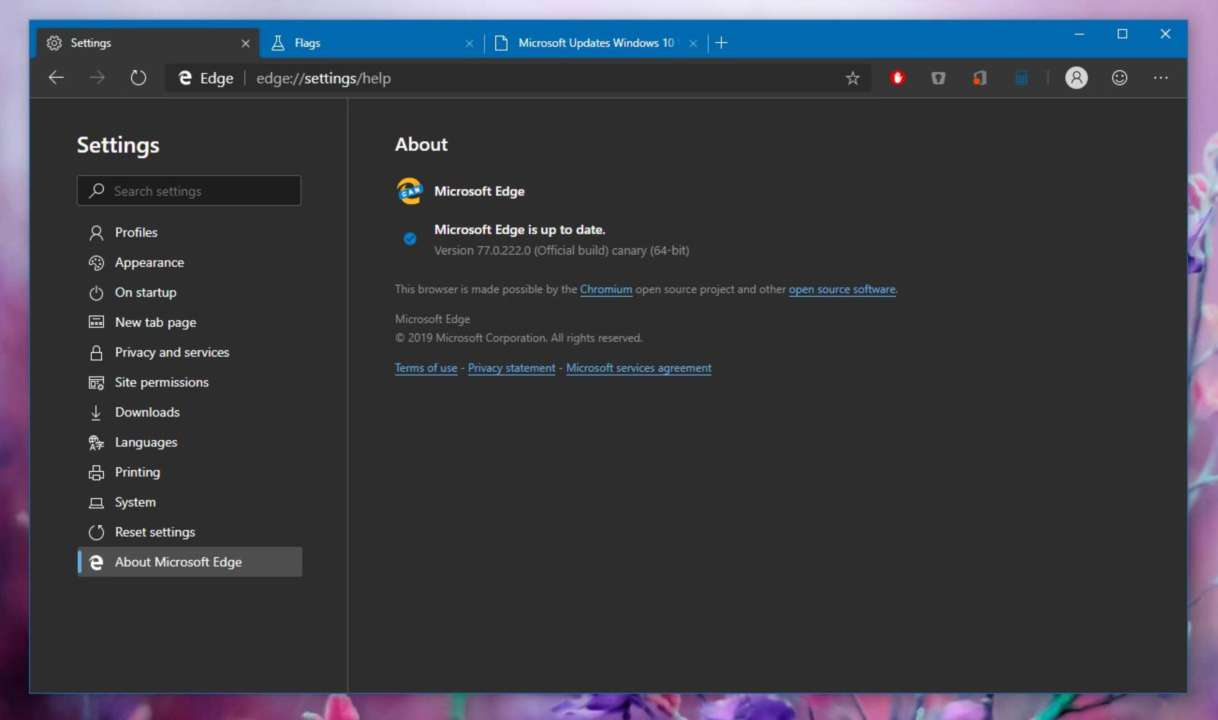
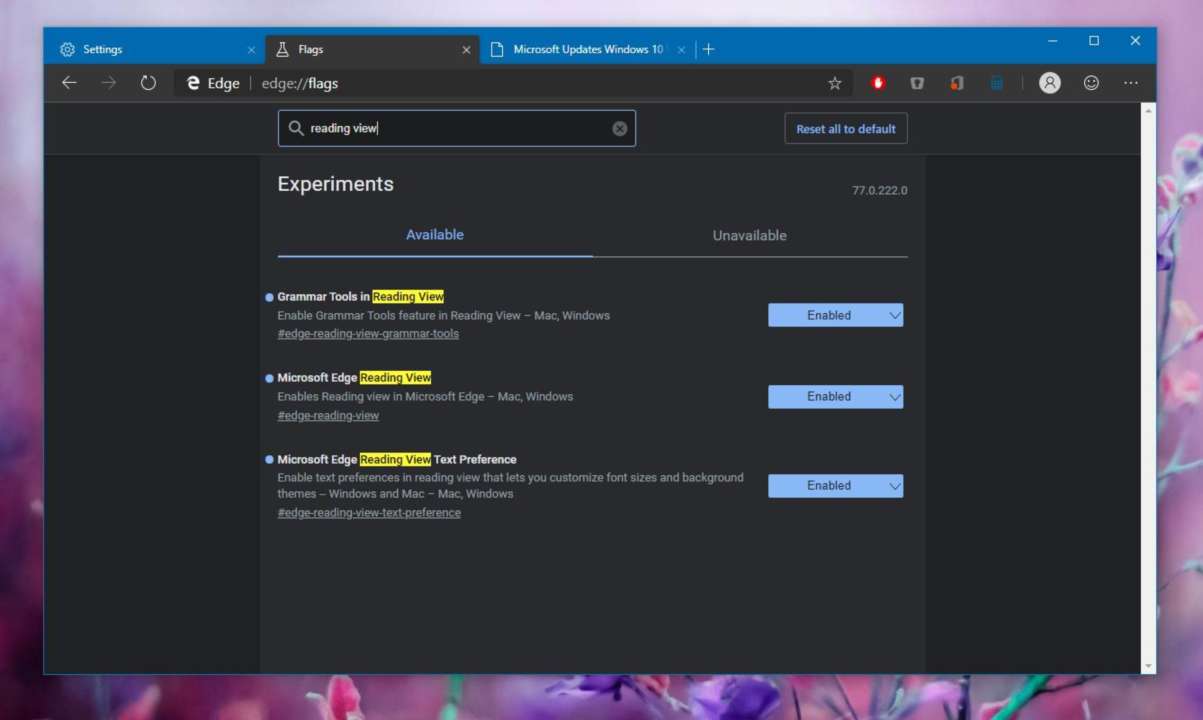
The first thing you should do is update the latest Canary build of Microsoft Edge, because otherwise, the new flag might not be there. The flag is available in build 77.0.222.0, so make sure you are running at this version.

Next, launch the browser and the following code in the address bar:

edge: // flags

You should now see the advanced flags configuration screen, and we'll start by enabling Reading View. If you have previously enabled this feature, you can scroll to the steps to enable the new settings.

To turn on Reading View, search for the following flag:

Microsoft Edge Reading View

And then click the drop down menu next to it and switch it from default to enabled. A reboot of the browser is going to be needed to save your settings.

If you want to activate the new settings, search for the following flag:

Microsoft Edge Reading View Text Preference

The flag description explains its purpose:

"Enable text preferences in reading view that lets you customize sizes and background themes - Windows and Mac - Mac, Windows"

Once again, click the drop down menu and enable the flag. A reboot of the browser is needed as well to complete your configuration.

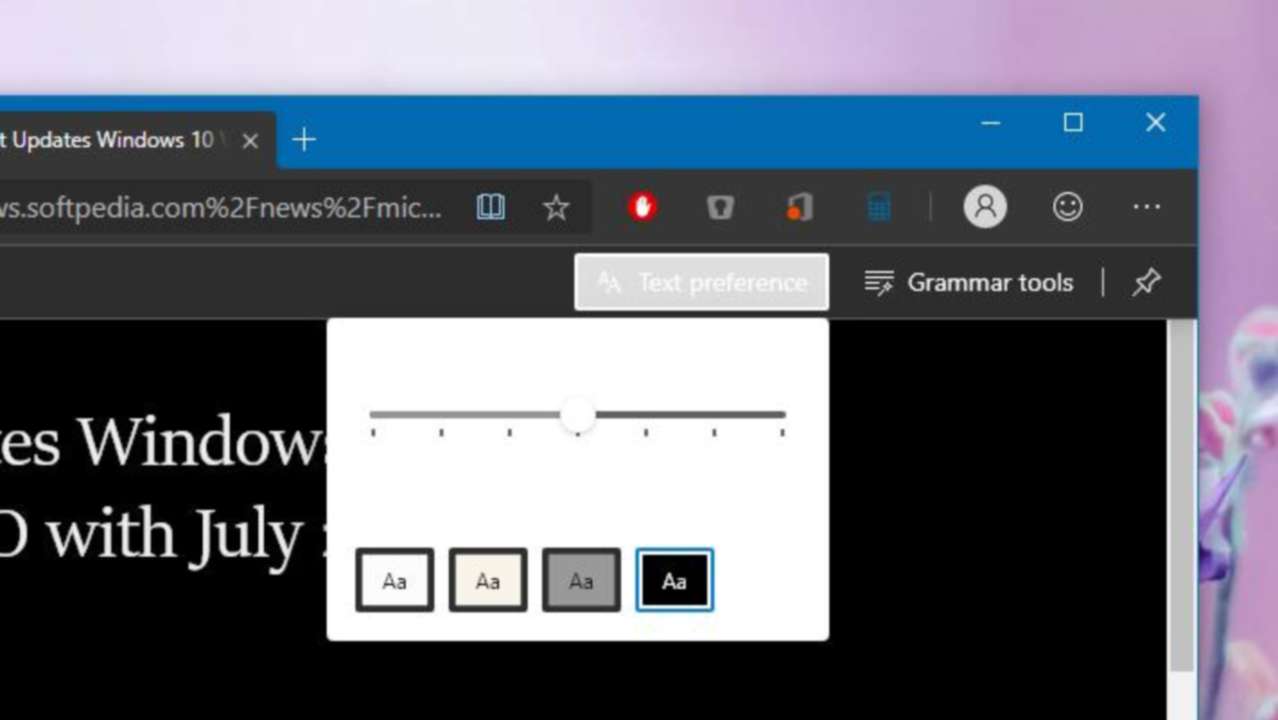
Next, you can load any article that you want to read with. View to try out the new settings. After enabling Reading View, there should be a "Text preference" button right in the toolbar.

Clicking it allows you to configure the text size and the background color, with the latter coming in four different pre-defined configurations.

At this point, this is just a basic implementation, so the font size adjustment tool, for instances, is nothing more than a slider which you can move to the font bigger or smaller. There are no indicators for how to use it, so simply click the purpose of each button.

Keep in mind that this feature is only available in the Canary version of Microsoft Edge, so it's not really a problem that some options appear to be missing for now. Most likely, Microsoft will see the coming updates, sooner or later options should be offered.

There's no release target for Microsoft Edge just yet, but it's likely to be finalized by the spring of 2020, at least on Windows 10.

This article has been published in Softpedia with the title How to Try Out the New Reading View Features in Microsoft Edge.

Thursday, March 21, 2019

VPN FEATURES IN OPERA FOR ANDROID OFFICIALLY RELEASED


Not long ago Opera presented the VPN feature for the Android browser version in the beta stage. Now the feature has been officially released.

The latest version of Opera Browser for Android will include a built-in VPN that users can enjoy for free. Previously, this feature was only available for browsers on the desktop.

The built-in VPN found in Opera Browser for Android uses 256-bit encryption to protect consumer data. In addition, it also obscures the real location of the user by connecting it to servers located all over the world.

Opera itself does not specify in any country the user can choose. However, in the beta, users can choose from a number of countries in the Americas, Europe and Asia, as well as using automatic selection options.

Furthermore, Opera promised not to interfere with user activities. That way, they will not have any data that has the potential to enable someone to identify users based on their activities in cyberspace.

However, you must be patient if you want to enjoy Opera Browser with built-in VPN. This is because the feature is only present in Opera Browser version 51.

FACEBOOK MESSENGER HAS NEW FEATURES LIKE WHATSAPP


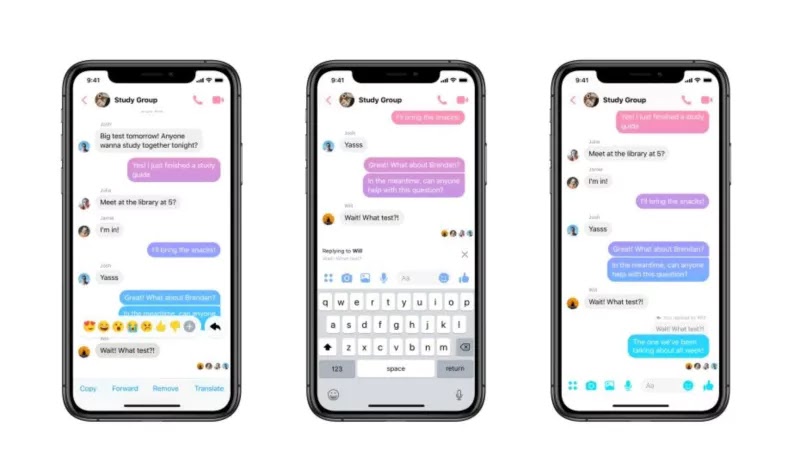
Facebook provides a new feature for Messenger services. Later users can easily quote or reply to messages that are more personal and specific.

Summarized from Ubergizmo on Thursday (3/21/2019), the Facebook feature on Facebook is similar to those already present on WhatsApp.

In Messenger, the way the new features work is not much different from WhatsApp, that is, the user simply does a push gesture - hold the message you want to reply to, then the option will appear to reply.

And when the message is sent it will also include a sign of a particular message that you want to reply to, so that the user who receives the message knows what is being discussed.

For the record, this feature only works on the mobile version and there is no version on the desktop. Allegedly, soon Facebook will also present these features on the desktop.